



We help businesses across Orlando, Tampa, and Lakeland-Winter Haven get expert managed IT services with security built in, from a team that knows you by name.



One of the most commonly asked questions when delivering training on OneNote is: "Which version should I use?" The aim of this blog post is to dispel the confusion and explain the differences between the two OneNote versions—OneNote and OneNote 2016—to help you decide which is the best choice for you and your needs!
Some of the below information is taken from the Microsoft OneNote support page, where you can find guidance on this and many other topics as well. Please be sure to also check back regularly, since updates will continue to be made as these amazing products change and adapt to meet the evolving needs of users.
OneNote is a digital notebook powered by Microsoft that automatically saves and syncs your notes as you work. You can type information directly in your notebook, copy and paste it from other apps and web pages, take handwritten notes, or draw ideas using a stylus or your finger. You can even record audio notes to stay hands-free when you're working on-the-go!
OneNote is used all across the world in offices, organizations, schools, and homes by people who need a fast, simple way to record information digitally.
Both OneNote versions have valuable features that can be used to work smarter, not harder—here are a few key ones!
One of the most important OneNote features is its enhanced organization. When using OneNote, you can divide notes into clear sections and pages, use highlighting and tags for follow-up, and rely on easy navigation and search to find exactly what you're looking for without having to sort endless through notes manually—saving you time and frustration.
Since OneNote automatically saves all of your work as you go, you don't have to worry about taking the time to manually press the "save" button every 10 minutes. Even if you close the app or your computer goes to sleep, your most recent changes will still be saved. This way, if your computer dies, you change work locations, or you had to take a break to go to a meeting or work on another task, you can simply pull the app back up and pick up right where you left off.
Another key OneNote feature is its collaboration capabilities. With OneNote, you can share your notebooks with coworkers or management to collaborate with ease. Everyone with access to a particular notebook can share ideas, makes edits, and offer suggestions directly on the page. With the ability to revise notes with type, highlighting, or ink annotations, everyone can clearly see the changes that need to be made and stay on the same page—literally!
OneNote also improves business mobility by making it possible to access your notebooks from any device. For example, you can create a notebook on your work computer while sitting at your desk in the office, then pull it up on your tablet or personal laptop at home. Or, if you're on the way to a client's office, you can pull up your notes from your phone to refresh before the big meeting. This OneNote feature is incredibly beneficial for remote workers especially, who often may be switching devices as they switch locations throughout the workday.
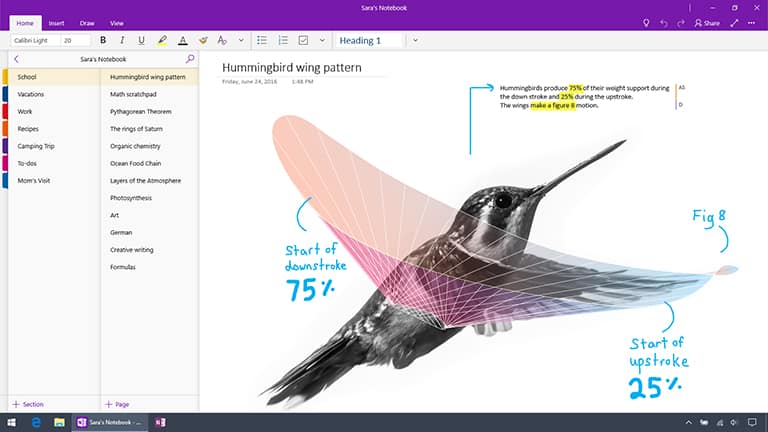
Now that you know a little bit more about what OneNote can do, it's time to differentiate between the two OneNote versions. OneNote for Windows 10 (simply labeled "OneNote") is pre-installed with Windows 10. This version runs only on Windows 10 and is the newest, most up-to-date, and feature-rich version of OneNote on Windows.
OneNote 2016 (commonly referred to as the "desktop app") was originally released as part of Microsoft Office 2016 and comes with Microsoft Office. As of right now, it runs on all currently supported versions of Windows. The user interface looks similar to the other Office 2016 apps like Word, Excel, and PowerPoint. You can download OneNote 2016 for free from www.onenote.com or install it as part of Office. Starting in March 2020, the OneNote desktop app will be automatically installed alongside Word, PowerPoint, and Excel when you install Office 365 or Office 2019 on your desktop.
Note: If your OneNote app on Windows 10 doesn't look quite like this, make sure you have the latest version. Click the Windows Start button, type Store, and then click the Store app in the results list. In the Store app, type OneNote into the Search box, click the OneNote app in the results list, and then click the Update button that appears next to the OneNote icon at the top of the page. When the button says Launch, you're good to go!
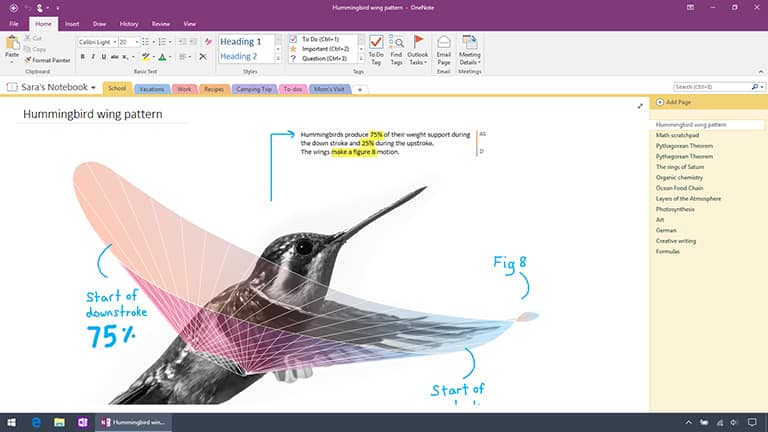
That mostly depends on the features you want — and where and how you use OneNote.
While OneNote 2016 has some legacy functionality that might be important if you use this version at your company or school, the newer OneNote for Windows 10 app has many innovative new features that you won't find in the older desktop version (but we'll get back to this later).
In addition, OneNote for Windows 10 is regularly updated with the newest functionality, security, and accessibility features. Plus, it's the only Windows version that offers our customizable new interface which is now consistent with OneNote for Mac, iOS (iPhone and iPad), Android (phones and tablets) and OneNote Online (the Web version of OneNote) for a truly universal user experience.
Depending on your preference, you can use both Windows versions side-by-side for a while to see if you have a preference before switching to the one that best meets your needs — the choice is yours!
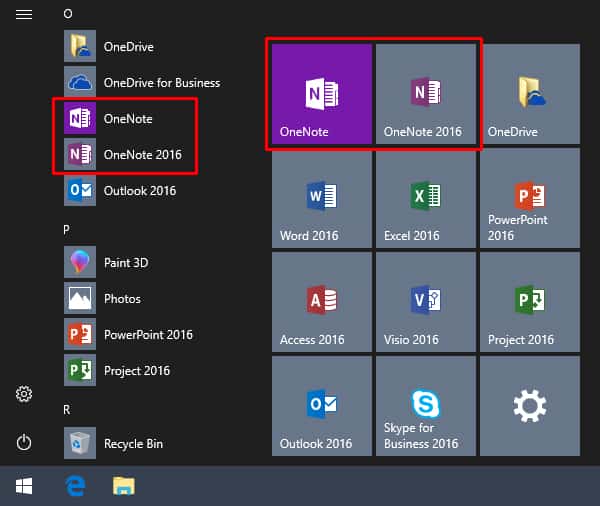
If you have both versions of OneNote on your Windows computer or device and you want to use both, you can designate either version to be your default app for opening OneNote-associated links and file associations. Learn how to change the default version of OneNote here. You can also choose to pin either—or both—app icons to the Windows taskbar and to the Start menu by following the steps below.
The OneNote (for Windows 10) app icon is already pinned to the Windows 10 Start menu by default, but you can pin the OneNote 2016 icon as well:
Note: If you right-click the OneNote 2016 icon in the alphabetical list of your installed apps instead of the search results list, you may need to first click More before clicking Pin to taskbar.
Repeat the previous steps if you want to also pin the OneNote (for Windows 10) app to the taskbar.
OneNote for Windows 10 is regularly updated, which means you can expect to see new and improved features every month. There are numerous OneNote features exclusive to the OneNote for Windows 10 app—as of right now, those features include the ability to:
Plus Windows 10 integration, including the ability to:
While OneNote is great for all users, you might need to use OneNote 2016 if you rely on any of these features:
Got a favorite feature in OneNote 2016 that you'd like to see in OneNote for Windows 10? Let us know on OneNote UserVoice. We're constantly improving the app and your feedback helps influence what we're working on next!
OneNote also has a mobile app that can be used on Windows, Apple, and Android smart phones and tablets. With the app, it becomes easier than ever that jot down notes and record what inspires you on-the-go.
Plus, the OneNote app makes it possible to pull up your content from any location, even if you're offline. You can start a note on your laptop then refer to it or update it on your phone or tablet, or vice-versa. OneNote works on any device or platform—find where to download the app for your specific device below!
Windows
Apple
Android
Whichever OneNote version you choose to use, this tool can change the way you take, organize, and share notes. If you want to learn about more OneNote features, have questions about how to use OneNote, or need a little assistance determine which OneNote version is right for you, reach out to us today!
At Protected Trust, we're here to help you simplify technology so you can achieve your greatest potential no matter device or location you're working from!
As always remember to regularly check back to the Microsoft Support OneNote pages to keep up to date with the latest and greatest OneNote features here.
We help businesses across Orlando, Tampa, and Lakeland-Winter Haven get expert managed IT services with security built in, from a team that knows you by name.